

Betting App Keeps Crashing on Android: Fixes That Actually Work
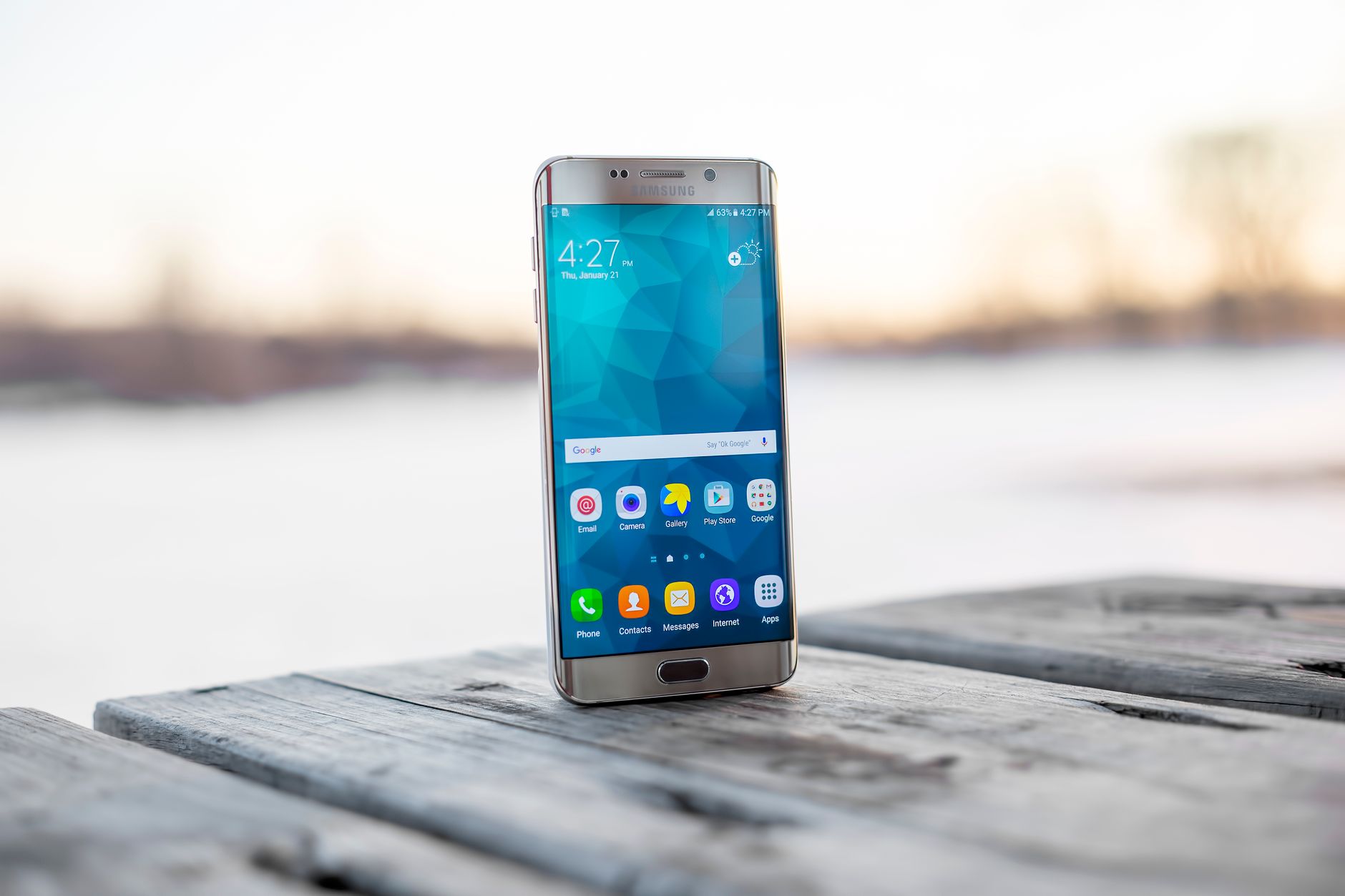
A crash at the worst possible moment can turn one uncertain tap into an expensive duplicate.
The odds are moving, the bet slip is ready—and Android suddenly returns to the home screen. A frozen deposit screen or missing confirmation can feel just as alarming, especially when the event is seconds from starting.
Before reopening, it helps to understand how mobile betting apps in the UK handle account activity: the app may close while the operator’s server still records the request. Do not assume the bet or payment failed.
After signing back in, check the cash balance, open bets, settled bets, and transaction history. Allow a short delay, then refresh once. Repeating a stake, withdrawal, or deposit too quickly can create a duplicate—even when no confirmation appeared before the crash.
Identify the crash pattern first
Start by noting exactly what happens. A true app crash returns to the home screen or shows an Android “keeps stopping” message. A frozen screen, endless spinner, login loop, or rejected action may instead point to connectivity, authentication, or the betting service itself.
Match the symptom to its likely scope
| Pattern | More likely area |
|---|---|
| Crashes immediately after launch | App files, update, or Android compatibility |
| Crashes on one page or feature | App bug or problematic page content |
| Freezes only on mobile data or Wi-Fi | Network, DNS, VPN, or filtering issue |
| Login and markets fail across devices | Account or service-side issue |
| Problem began at a specific time | Recent app update, Android change, or outage |
Before changing settings, record a short baseline:
- Device: phone model, Android version, free storage, and available memory.
- App: version number, install source, and whether the failure started after an update.
- Connection: Wi-Fi or mobile data, plus any VPN, private DNS, or ad blocker.
- Timing: launch, login, market loading, bet slip, deposit, withdrawal, or live event.
- Service status: official status page, support feed, and recent outage reports.
Try the same action once on another connection or the operator’s mobile website. If both fail, avoid repeatedly clearing data or reinstalling; the fault is less likely to be local. If a crash followed a submission, check account history before trying again.
Stop an app that closes immediately
-
Force stop the betting app
Open Settings > Apps, select the app, and tap Force stop. Relaunching it ends a stalled background process without removing account information.
-
Restart the phone
A restart clears processes and temporary memory that may remain stuck after an update, failed login, or interrupted payment screen.
-
Check available storage
Keep at least 1–2 GB free if possible. Android and the app need working space for temporary files, updates, and session data; critically low storage can cause an immediate exit.
-
Clear the app cache
Under Settings > Apps > Storage, tap Clear cache. This removes disposable files and is one of the safest ways to free space and stop repeated crashes.
-
Install pending updates
Update the betting app, Android System WebView, Chrome, and Android itself. Login pages and other embedded screens may fail when these components are outdated.
Menu names vary slightly between Android manufacturers.
Clear cache removes temporary files and normally preserves logins and settings. Clear storage or Clear data resets the app completely, often signing the account out and deleting preferences or downloaded content. Use that option only after the safer steps above, with login and verification details available.
Fix crashes that start after an update
A crash that appears immediately after an app or Android update often points to a compatibility fault, not damaged installation files. Reinstalling repeatedly rarely helps when the same incompatible version is downloaded each time.
Update the full software chain
Open Google Play and install the betting app’s latest official release. Then check Settings > System > System update for Android updates and security patches; menu names vary by device.
Also update Android System WebView and Google Chrome through Google Play. Many login, payment, and account screens rely on these components, so an outdated or disabled WebView can close the app unexpectedly. Restart the phone after all updates finish.
If a beta version is installed, leave the beta program and return to the stable release. Avoid downloading an older APK from an unofficial site, since rollback packages may introduce security or account risks.
When the device is no longer supported
Check the app’s Play Store listing or support page for its minimum Android version. If the phone cannot receive that version, realistic fallbacks include the operator’s official mobile website or a supported device. The differences between iPhone and Android compatibility checks can also help confirm whether the limitation is platform-specific.
If all requirements are met but crashes continue, report the phone model, Android version, app version, and crash timing to official support.
When crashes happen during account actions
A crash at login often points to an expired session or biometric prompt failure. Force stop the app, reopen it, and sign in with the password instead of fingerprint or face recognition. If that works, biometric access can be enabled again later.
For crashes after tapping Place bet, first check the account’s open bets, bet history, and balance. The request may have reached the operator before Android closed the app. Only retry after confirming that no bet was accepted.
Payment screens add more failure points because they may use Android System WebView, Chrome, a banking app, or a verification page. Update WebView and Chrome, allow the betting app’s required permissions, and temporarily set Chrome as the default browser. Also disable aggressive battery restrictions that may close the app during an external handoff.
If a deposit or withdrawal triggers the crash:
- Check the cashier history and account balance.
- Check the bank or payment provider for a pending charge.
- Reopen the app before attempting the transaction again.
- Save confirmation messages or transaction references.
Repeated failure at the same step may indicate an account-session or payment-provider issue rather than a damaged installation.
Never assume a crashed screen means failure. Verify bets, balances, pending payments, and transaction history before submitting again; otherwise, duplicate wagers or charges may result.
Test Wi-Fi against mobile data
A quick comparison can show whether the app is failing or the connection is interfering. On a trusted Wi-Fi network, open the app and repeat the problem action. Then disable Wi-Fi and try again on mobile data. If only one connection triggers the crash, that network path—not the account—is the stronger suspect.
Start with simple reconnection steps:
- Toggle airplane mode on for 10 seconds, then reconnect.
- Forget and rejoin the Wi-Fi network.
- Restart the router if other apps also struggle on Wi-Fi.
- Confirm that ordinary websites load without a captive-portal sign-in.
If the issue remains network-specific, temporarily disable VPNs, private DNS, ad blockers, firewalls, antivirus web protection, and data-saving tools. These can block login checks, embedded pages, or payment handoffs. Re-enable each tool individually to identify the conflict rather than leaving protection disabled.
The amount of mobile data already consumed does not normally make an Android app crash; data usage and app instability are usually separate issues. A depleted allowance may throttle or stop connectivity, but that more often causes loading errors.
Use Reset Wi-Fi, mobile and Bluetooth only last. It removes saved networks, paired devices, and custom connection settings, so those details must be added again.
When crashes build over time
An app that works initially but freezes or closes later may be running into memory pressure. Streaming odds, live graphics, browser tabs, and other active apps can gradually consume RAM. Heat can produce similar symptoms: Android may reduce performance or stop demanding processes when the phone becomes too warm.
Test one cause at a time:
- Restart the phone, open only the betting app, and repeat the same action.
- Remove the case temporarily and let the device cool away from direct sunlight or charging.
- Pause downloads, screen recording, games, and other heavy background activity.
- Check Settings > Battery > Battery usage for unusually high consumption.
Aggressive battery controls may suspend background connections or close the app after several minutes. Set the app to Unrestricted or disable battery optimization only for a short, repeatable test. If stability improves, switch back to Optimized and test whether allowing background activity alone is enough; permanently removing every restriction can increase heat and battery drain.
Power management can also explain notification problems appearing after crashes, especially when alerts stop once the app leaves the screen.
Reinstall safely, then document the fault
-
Confirm account access
Before removing the app, verify the username, password, registered contact details, and access to two-factor authentication or recovery codes. Uninstalling removes local app data, not the betting account.
-
Save transaction details
Record any bet, withdrawal, or deposit that may still be processing. Keep reference numbers and screenshots, but never include passwords or authentication codes.
-
Remove the existing installation
Uninstall the app, restart the phone, then download a fresh copy from Google Play or the bookmaker’s official source. Avoid APK files from third-party sites.
-
Test the clean installation
Sign in and repeat only the smallest safe action that previously caused the crash. Stop troubleshooting if the app remains stable.
-
Escalate with evidence
If it still crashes, send support the time of failure, exact action, phone model, Android and app versions, network used, screenshots, and any on-screen error. If support does not resolve an account or transaction issue, follow the formal process for complaining to a bookmaker.
Android’s built-in screen recorder can capture a repeatable crash, provided balances, personal details, and notifications are hidden.
A crash after tapping Place bet, Deposit, or Withdraw does not prove the request failed. Check account history first to avoid duplicates.
Use one diagnostic order: server status, free storage, app and system updates, network, then device pressure such as heat or low memory. Change one thing at a time and stop as soon as stability returns.
Relevant news

Lost Bet or Account Alerts on iPhone? A Checklist to Restore Notifications
Start with one specific event—such as a settled bet, deposit confirmation, withdrawal update, or security…

Which Permissions Do Betting Apps Really Need—and What to Deny
Permissions should be granted only when a feature is being used, not pre-emptively at installation.…

How Much Mobile Data Do Betting Apps Actually Use?
There is no universal figure: apps refresh at different rates, and network conditions can trigger…



Safe Ways to Access a Betting App Missing from the UK Play Store
First, confirm the operator’s licensing status before attempting any workaround. Installing apps from outside the…

Login
Register