

How Much Mobile Data Do Betting Apps Actually Use?
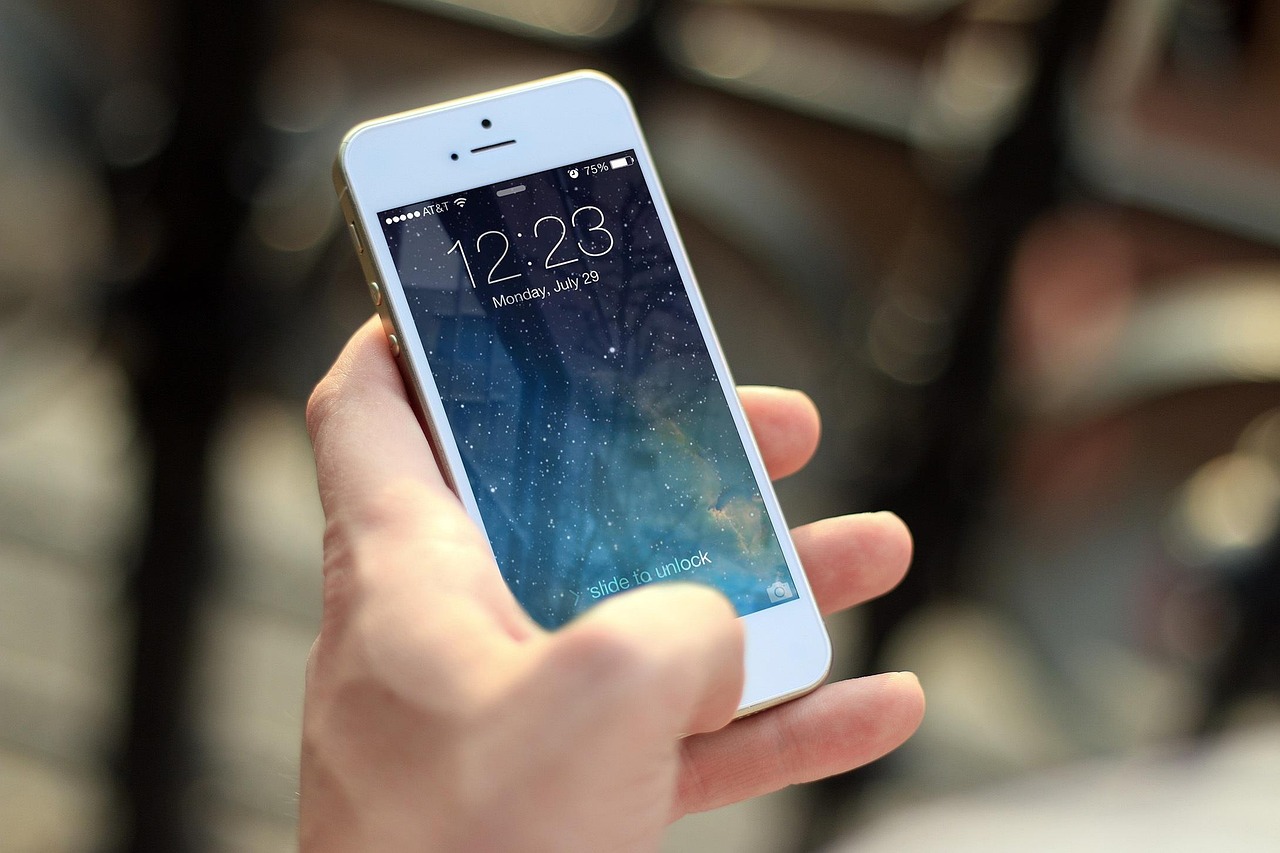
The app itself is rarely the issue; activity inside it determines the bill.
A ten-second odds check at a bus stop may download little more than prices and account information. Leave the same app open throughout a live match, however, and it can repeatedly fetch odds movements, scores, statistics, animations, and promotions.
Video and audio consume far more data than ordinary bet slips or text-based markets. Background refresh, push-notification syncing, and automatic content loading can also continue after active browsing stops. By contrast, an installed app that remains closed usually uses very little mobile data—unless background access or automatic updates are enabled. Session length matters, but what loads during that session matters much more.
- An app-store update can use more data than several ordinary odds-checking sessions, so Wi-Fi-only updates are sensible.
What an hour can consume
There is no universal figure: apps refresh at different rates, and network conditions can trigger additional loading. Still, the following ranges provide a reasonable guide for an hour of active use.
| Activity | Indicative data use per hour | What drives it |
|---|---|---|
| Basic sportsbook browsing and bet placement | 1–10 MB | Mostly text, odds, account pages, and small graphics |
| Frequently refreshed live markets | 10–50 MB | Rapid odds updates, score feeds, animations, and repeated navigation |
| Live video streaming | 300 MB–1.5 GB | Video quality, frame rate, stream stability, and viewing time |
Ordinary sportsbook functions are generally light. Checking prices, opening a market, building a bet slip, and reviewing settled bets usually transfers small packets of data rather than large media files. A brief session may therefore use only a few megabytes.
Live video is the major exception. Even a low-quality stream can consume more data in an hour than many days of occasional odds checking. High-definition streams may exceed the upper estimate, while stopping the video, lowering its quality, or switching to Wi-Fi can sharply reduce mobile-data use.
Actual totals may also rise when an app downloads updates, reloads interrupted content, or continues refreshing markets in the background.
What triggers each data transfer
A betting app uses data whenever it contacts the operator’s servers. Opening a screen may request account balances, available events, current odds, bet history, and personalised offers. Each response can be small, but frequent refreshes make them add up.
Placing a bet is comparatively lightweight. The app typically sends a compact request containing the selection, stake, quoted odds, and session details, then receives confirmation or an error message. This exchange is usually measured in kilobytes rather than megabytes.
The heavier usage comes from everything surrounding that transaction:
- Market updates repeatedly replace prices, scores, and suspension statuses.
- Promotional panels download new images, banners, and animations.
- Live visualisations continually receive event data to redraw pitches, courts, or timelines.
- Audio and video stream large files instead of exchanging short text records.
Some bookmaker tools and features also trigger extra requests after every tap, such as loading statistics, cash-out values, or alternative markets. Cached graphics may reduce later downloads, but rotating promotions and constantly changing live information cannot always be reused. As a result, browsing ten live events can consume far more data than submitting ten straightforward bets.
From quick checks to live streams
A login, balance check, deposit-status check, or bet-history lookup is usually negligible. These actions exchange small account records and typically consume less data than browsing several image-heavy web pages. Placing a pre-match bet is similarly light unless the app loads promotional graphics or extra statistics.
Data use rises with repetition
Watching a cash-out value is more demanding because the figure may refresh every few seconds. The individual updates remain small, but a 90-minute session creates hundreds of requests. The same principle applies to live scorecards, match trackers, animated pitches, and constantly changing odds.
From lowest to highest typical usage, the hierarchy is:
- Login and account checks
- Browsing markets and placing occasional bets
- Monitoring cash-out or frequently refreshing odds
- Running in-play visualisations and detailed statistics
- Listening to live audio commentary
- Streaming live video
App design can shift the middle of this ranking. A lightweight odds list may use far less than a tracker filled with animations, team graphics, and automatic updates; a comparison of data use across fast betting apps can therefore reveal differences even when the same markets are open.
Session length and refresh rate matter more than a single tap. Leaving an in-play screen active for hours can outweigh many account checks, while audio and especially video deliver a continuous stream. Reducing video quality, closing unused match trackers, and avoiding rapid manual refreshes offers the clearest savings.
What counts toward the total?
The number shown by a phone’s data meter is rarely just betting activity. An active session includes odds refreshes, account requests, statistics, and any live audio or video. Several less obvious transfers can appear alongside it:
- Downloads and updates: Installing the app or a large update may outweigh many ordinary sessions.
- Cached assets: Logos and interface graphics are downloaded once, then reused until the cache is cleared or replaced.
- Promotional media: Autoplay banners, clips, and embedded streams can add traffic without a bet being placed.
- Notifications and background refresh: Usually small individually, but frequent checks accumulate.
- Location requests: The GPS reading itself uses little or no mobile data, though the app may send coordinates to its servers. Permission settings determine access; this guide to data-using app permissions explains the distinction.
For a clean test, the app’s mobile-data counter can be reset before a fixed period of normal use with Wi-Fi disabled. Foreground and background totals should then be checked separately, without installing updates during the test.
Mobile data measures information transferred over a cellular network. Device storage measures space occupied by the app, downloaded files, and cache. A 200 MB cache does not mean 200 MB is consumed in every session.
Three data-use myths worth dropping
Figures in a mobile betting app data guide are useful baselines, not guarantees. Device settings, software updates and streaming quality can shift results substantially.
Measure the app on a typical session
-
Prepare a clean baseline
Disable Wi-Fi so the test uses cellular data, then close unrelated apps and pause downloads or cloud backups. Note the starting figure rather than relying on an estimate.
-
Find the app’s counter
On Android, open Settings → Network & internet → SIMs/App data usage; wording varies by manufacturer. On iPhone, use Settings → Cellular/Mobile Service, find the app, and record its total.
-
Test ordinary browsing
Spend 15–30 minutes checking events, markets, bet slips, account pages, and results as normal. Record the duration and data increase without opening live media.
-
Run a separate in-play session
Monitor several live markets for the same length of time, including statistics and cash-out screens if normally used. Keeping this distinct shows the cost of frequent odds refreshes.
-
Isolate streaming
Play video or audio for a fixed period and record the increase. Keep stream quality consistent, since automatic quality changes can overwhelm every other variable.
-
Repeat and calculate
Run each scenario on several different days, then divide data used by session length to estimate MB per hour. An average of representative sessions is more reliable than one short test.
Android may report foreground and background use separately. On iPhone, resetting cellular statistics clears totals for every app, so existing figures should be saved first.
Use the same app version, similar session length, and comparable actions each time. A five-minute trial can miss adverts, refresh cycles, or a stream quality change; repeated sessions expose the normal range instead.
Cut usage without losing the essentials
-
Reserve video for Wi-Fi
Disable mobile streaming where the app allows it. If video is needed on cellular, select the lowest practical quality.
-
Turn off autoplay
Stop highlights, previews, and live streams from starting automatically. Static odds and score updates generally remain available.
-
Limit background data
Use the phone’s per-app controls to restrict background activity, but check whether bet confirmations, price alerts, or security messages are delayed.
-
Keep app updates on Wi-Fi
Set the app store to download updates over Wi-Fi only. Updates can consume far more data than routine betting activity.
-
Set a usage warning
Android and iOS counters can flag rising consumption before the monthly allowance runs low. More practical ways to reduce data and storage use can help with tighter limits.
A complete cellular-data block may prevent live odds, cash-out updates, or account checks from loading away from Wi-Fi. Background limits and autoplay controls are usually the better first step.
When data saving goes too far
Strict battery or data controls can make a healthy betting app look unreliable. Blocking background data may delay bet confirmations and price alerts, while aggressive power saving can suspend the connection when the screen dims. A restricted refresh rate can also leave live odds, scores, or cash-out values frozen.
The simplest test is to restore normal connectivity briefly. If the screen updates after mobile data is re-enabled, the app is reopened, or battery restrictions are removed, the problem was probably a stalled connection. A genuine crash usually closes the app, returns to the phone’s home screen, or forces a full restart; the wider list of data-related reasons an app may appear to crash helps separate failures from slow or blocked transfers.
Turn a session into a monthly figure
Multiply measured session use by the expected number of monthly sessions, then add a 25–30% safety margin for longer sessions, background refreshes, adverts, and unusually busy events.
| Usage pattern | Measured activity | Monthly estimate with 30% margin |
|---|---|---|
| Light checks | 5 MB × 20 sessions | 130 MB |
| Active live markets | 30 MB × 20 hours | 780 MB |
| Video streaming | 750 MB × 8 hours | 7.8 GB |
These are planning examples, not universal rates. The most reliable allowance comes from the phone’s own per-app measurements over several representative sessions. Rounding upward to the next convenient data-plan increment reduces the chance that one unusually active weekend consumes the remaining allowance.
Budget video separately
Ordinary browsing and live-market use can often fit within a modest allowance when measured and padded. Video should be treated as a separate data category: even a few streamed events can outweigh a full month of odds checks and bet placement.
Relevant news

Lost Bet or Account Alerts on iPhone? A Checklist to Restore Notifications
Start with one specific event—such as a settled bet, deposit confirmation, withdrawal update, or security…

Which Permissions Do Betting Apps Really Need—and What to Deny
Permissions should be granted only when a feature is being used, not pre-emptively at installation.…

Betting App Keeps Crashing on Android: Fixes That Actually Work
Start by noting exactly what happens. A true app crash returns to the home screen…



Safe Ways to Access a Betting App Missing from the UK Play Store
First, confirm the operator’s licensing status before attempting any workaround. Installing apps from outside the…

Login
Register